Perspective and Scale
A SketchUp model’s view can affect both perspective and scale. You can choose any of SketchUp’s standard views in LayOut in the SketchUp Model panel under Camera. By default, most SketchUp models are in Perspective view. Changing to Parallel Projection, an orthographic view, can better show a model’s scale.
Last updated 17 July 2026
A SketchUp model’s view can affect both perspective and scale. You can choose any of SketchUp’s standard views in LayOut in the SketchUp Model panel under Camera.
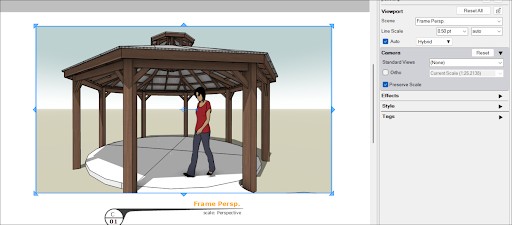
By default, most SketchUp models are in Perspective view. Changing to Parallel Projection, an orthographic view, can better show a model’s scale. To switch to an orthographic view:
- Select your SketchUp model.
- In the SketchUp Model panel click Ortho.
- Using the dropdown, select a scale preset from the list or select Custom and enter your own custom scale.
- Clicking Preserve Scale makes sure your model scales when you change the size of its bounding box.
You can also access most view and scale options from the context menu.
Still need help?
Technical support from our New Zealand team is available to customers with a current Procadsys SketchUp Plus subscription: Pro Plus, Pro Scan Plus, Pro Civil Contractor Plus, Advanced Workflows Plus or Studio Plus. Self-help articles are public.
Contact SketchUp support