Use LayOut's Preferences dialog to customise your workspace and default settings. Each section covers a different set of options.
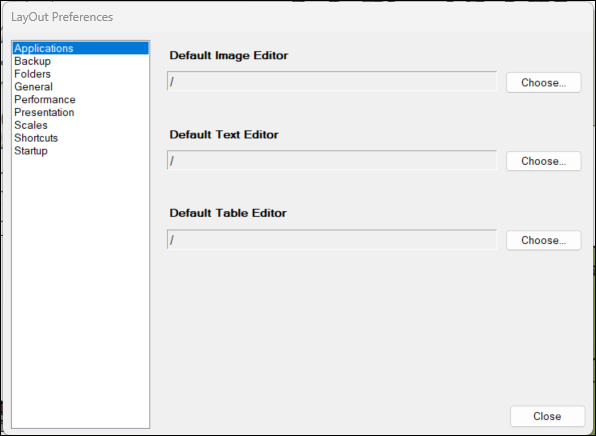
Applications
In Applications, choose which applications LayOut uses for images, text and tables.
Backup
By default, LayOut creates a backup file and auto-saves your work every 5 minutes. In Backup, you can turn off backup files, adjust the auto-save settings or turn off auto-save.
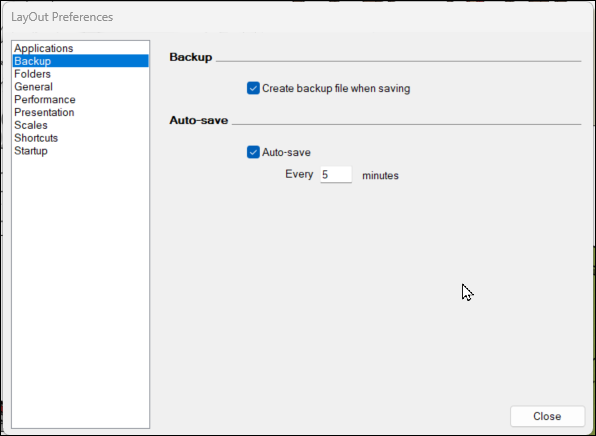
Backup files are saved in the same folder as your other LayOut files.
Folders
In Folders, change where LayOut stores your templates, scrapbooks and pattern-fill images.
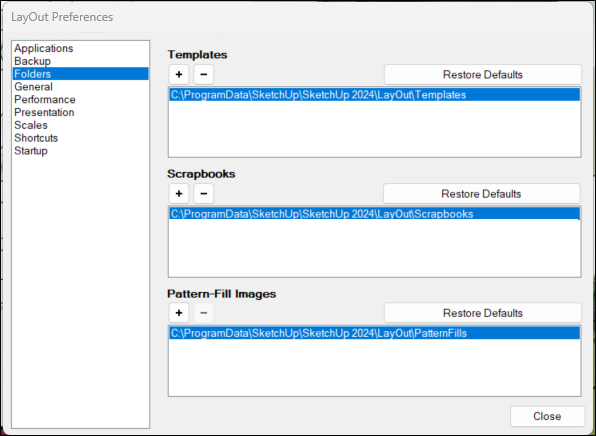
In each section, you can add a folder location (+), remove a folder location (-) or click Restore Defaults to restore the default settings.
General
In General, adjust how LayOut renders SketchUp models, change tool colours and set LayOut's scroll speed.
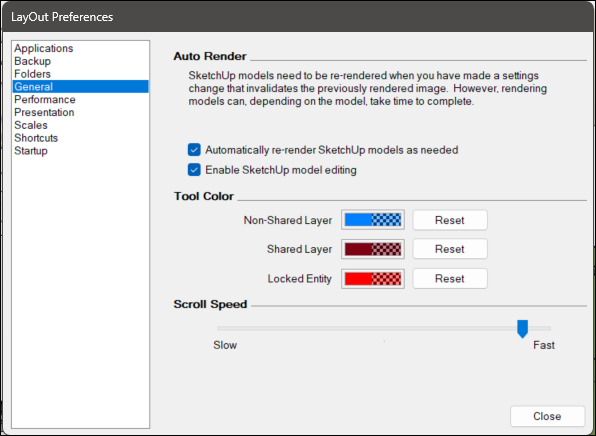
See General for details.
Performance
Complex models can strain your computer, depending on its capabilities. Use the Performance tab to adjust LayOut's general performance settings.
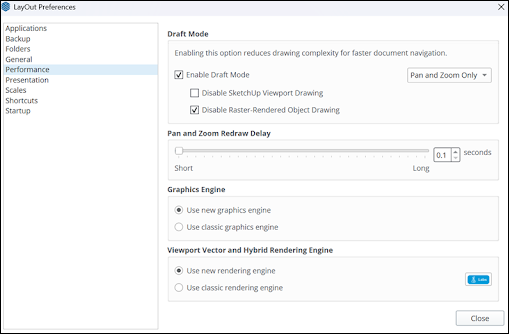
See Performance for details.
Presentation
In Presentation, control how your document appears during a presentation.
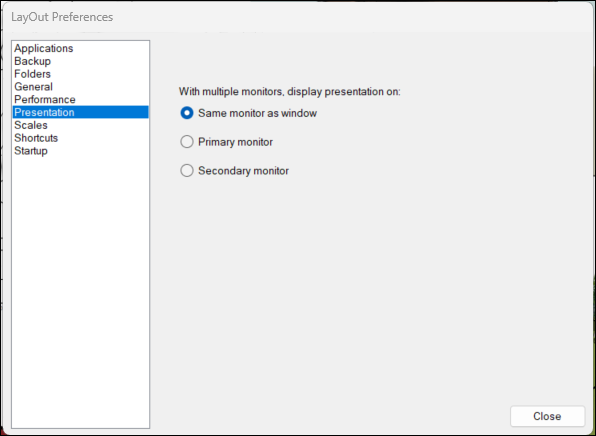
See Presenting Your LayOut Document for details.
Scales
In Scales, view all available model scales or create a custom scale for your document.
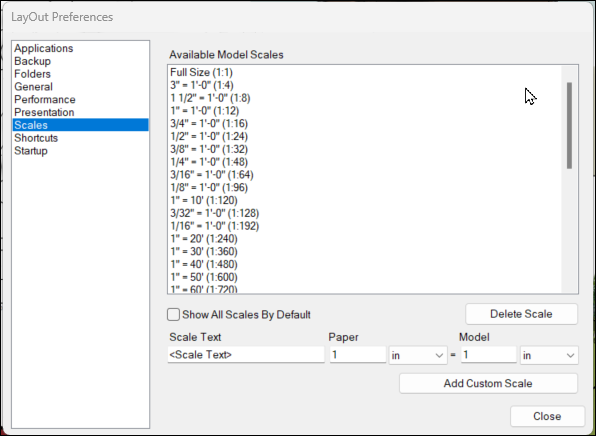
See Perspective and Scale for details.
Shortcuts
In Shortcuts, view and assign shortcuts to suit how you work in LayOut.
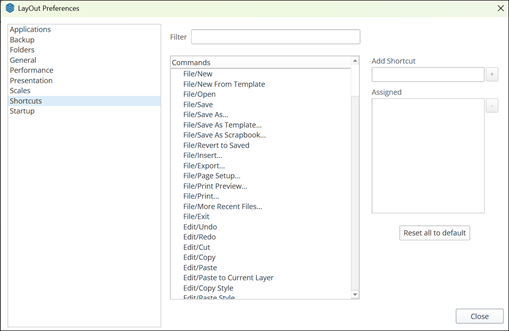
See Adding and Editing Shortcuts for a detailed guide.
Startup
In Startup, choose what LayOut does when you open it and whether it checks for updates.
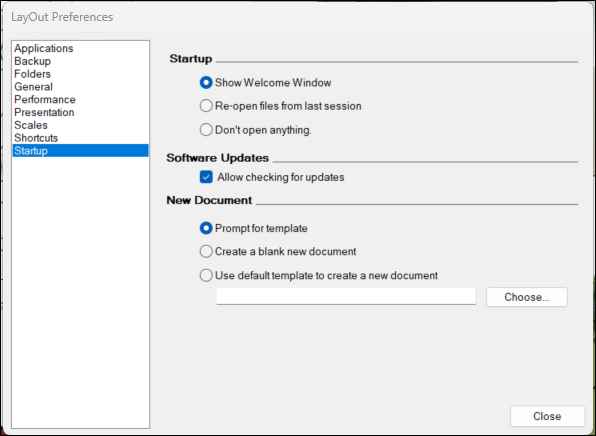
Under Startup, choose from the following options:
- Show Welcome Window opens the Welcome window whenever you start LayOut.
- Re-open Files From Last Session automatically opens the file you had open when you last closed LayOut.
- Don’t Open Anything opens LayOut to a new document.
In Software Updates, Allow Checking for Updates is selected by default. Clear this option to stop LayOut checking for updates.
New Document controls what LayOut does when you create a new document. It has three options:
- Prompt for Template asks which template you want to use each time.
- Create a Blank New Document opens a new document with no template applied.
- Use Default Template to Create a New Document always uses the specified template. To select a template, click Choose to view the available templates.