Viewport Camera Tools
The Camera tools help you adjust how a model appears within a LayOut document. To start using the Camera tools, you need to enable editing the view by selecting your SketchUp model and performing one of the following actions:Context-click the selection and choose Edit 3D View.Double-click the selection.Press
Last updated 17 July 2026
The Camera tools help you adjust how a model appears within a LayOut document. To start using the Camera tools, you need to enable editing the view by selecting your SketchUp model and performing one of the following actions:
- Context-click the selection and choose Edit 3D View.
- Double-click the selection.
- Press Enter.
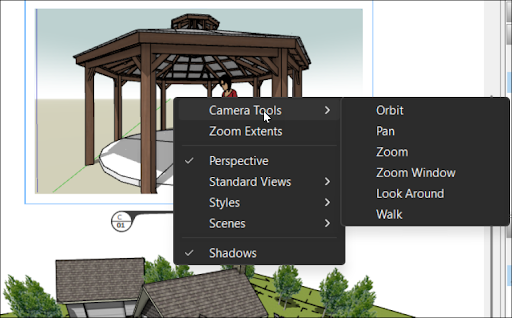
While editing the view of a SketchUp model you can use the following tools:
- Pan (
 )
) - Orbit (
 )
) - Zoom (
 )
) - Zoom Window (
 )
) - Look Around (
 )
) - Walk (
 )
)
The Pan tool will be activated by default. You can context click anywhere inside the viewport and select Camera Tools to change to a different tool.
Still need help?
Technical support from our New Zealand team is available to customers with a current Procadsys SketchUp Plus subscription: Pro Plus, Pro Scan Plus, Pro Civil Contractor Plus, Advanced Workflows Plus or Studio Plus. Self-help articles are public.
Contact SketchUp support