Use a 3-button scroll wheel mouse to navigate your model in SketchUp. It can help you model faster and more precisely.
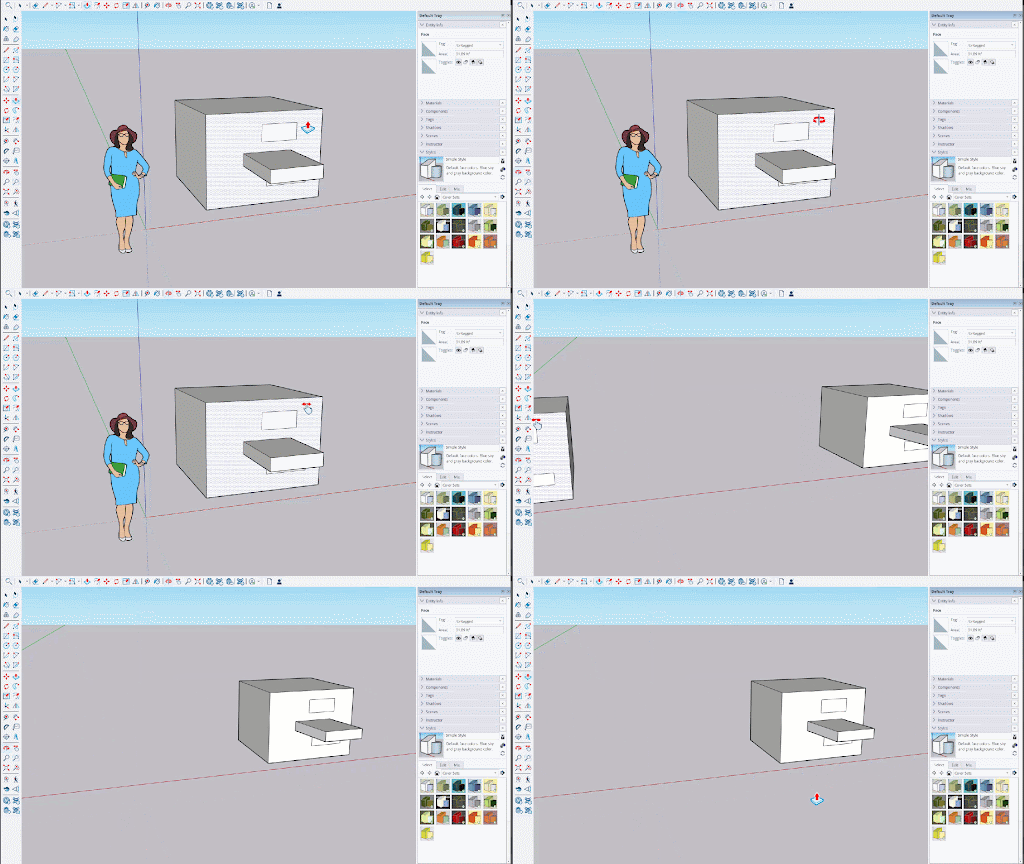
You can use some navigation tools directly with your mouse, even while another tool is active.
For example, zoom in while the Push/Pull tool is active to find the exact point you want to pull from.
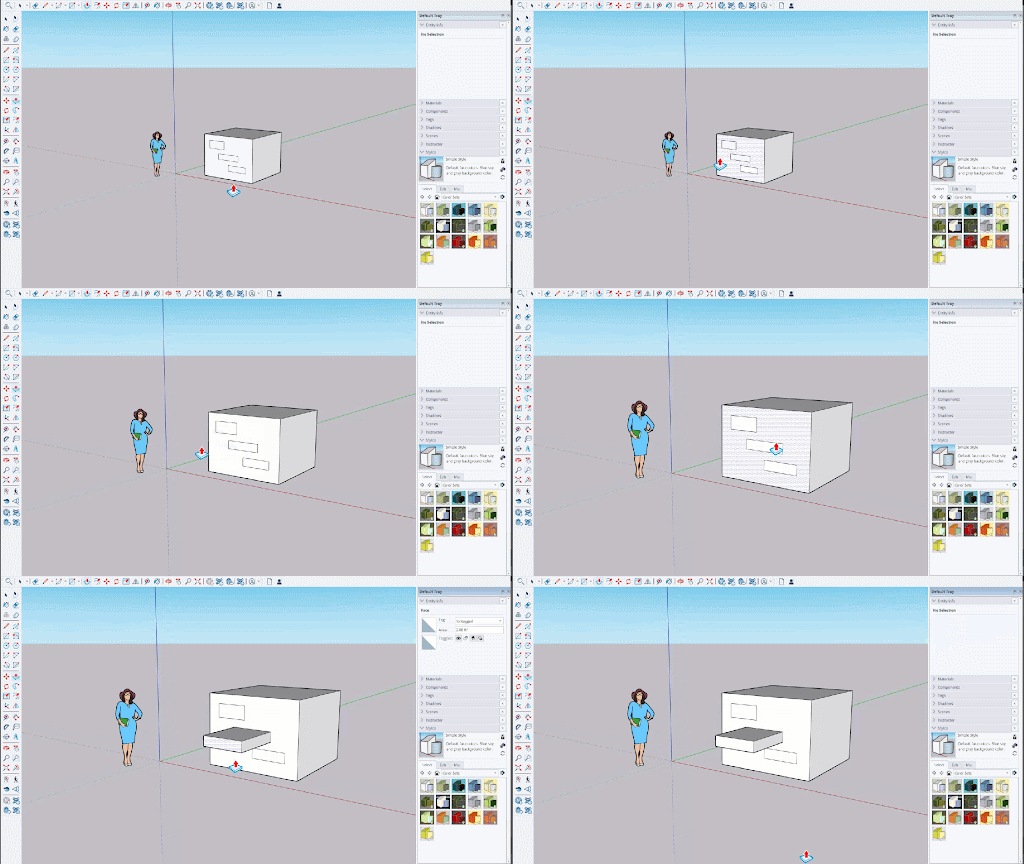
You can also use your mouse to:
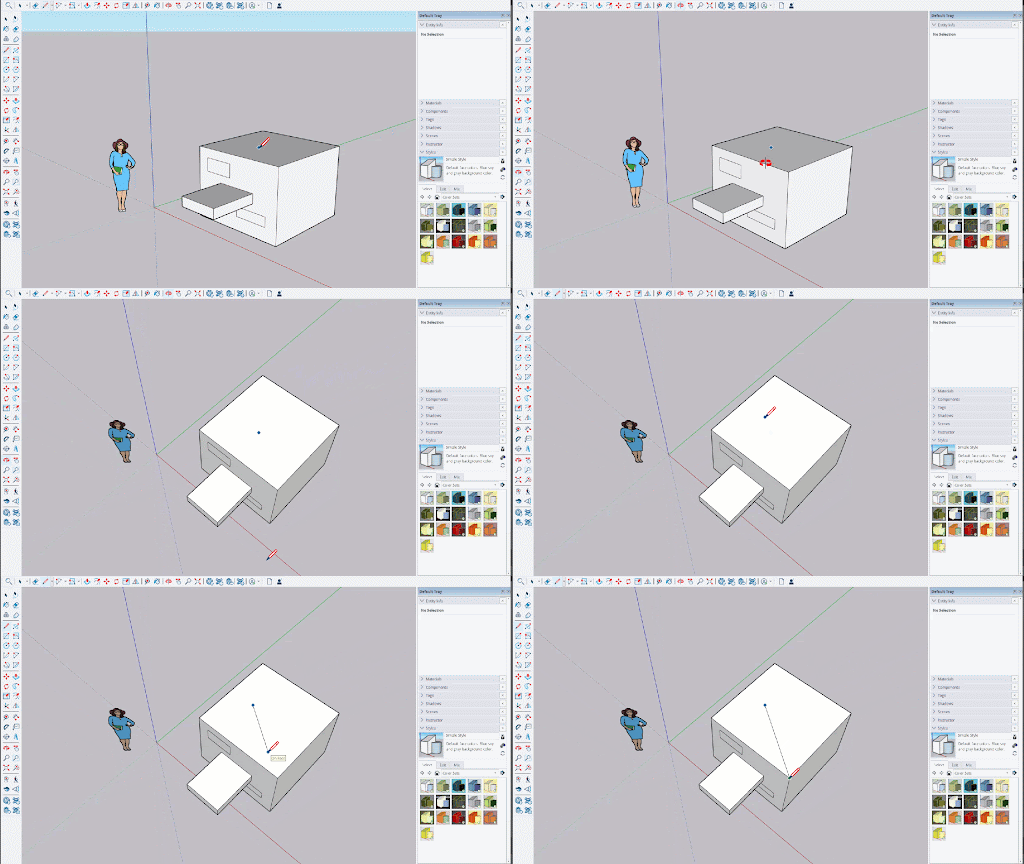
- Orbit around an entity to find a partially hidden reference point.
- Zoom out to use an inference point on geometry outside the current view.
- Pan to another point in your model while making copies of an entity.
Zoom
Zoom in and out as you draw to align edges, find relevant inferences and see what to do next. Zoom Extents ( ) and Zoom Window (
 ) help you see specific views. Use the basic Zoom (
 ) tool for most navigation. With Zoom active, click a point in your model, then use the scroll wheel to zoom in or out from that point. When another tool is selected, the scroll wheel zooms in and out from the centre of the modelling window.
Orbit
The Orbit ( ) tool rotates the camera around your model. To use Orbit while another tool is active, press and hold the centre mouse button.
Pan
The Pan ( ) tool moves your camera view vertically or horizontally. To pan while another tool is active, hold down both the scroll wheel and the left mouse button. Then drag the cursor in the direction you want the camera to move.