Use the physics simulation tool in KeyShot to simulate movement in your scene and record it as Keyframe animations.
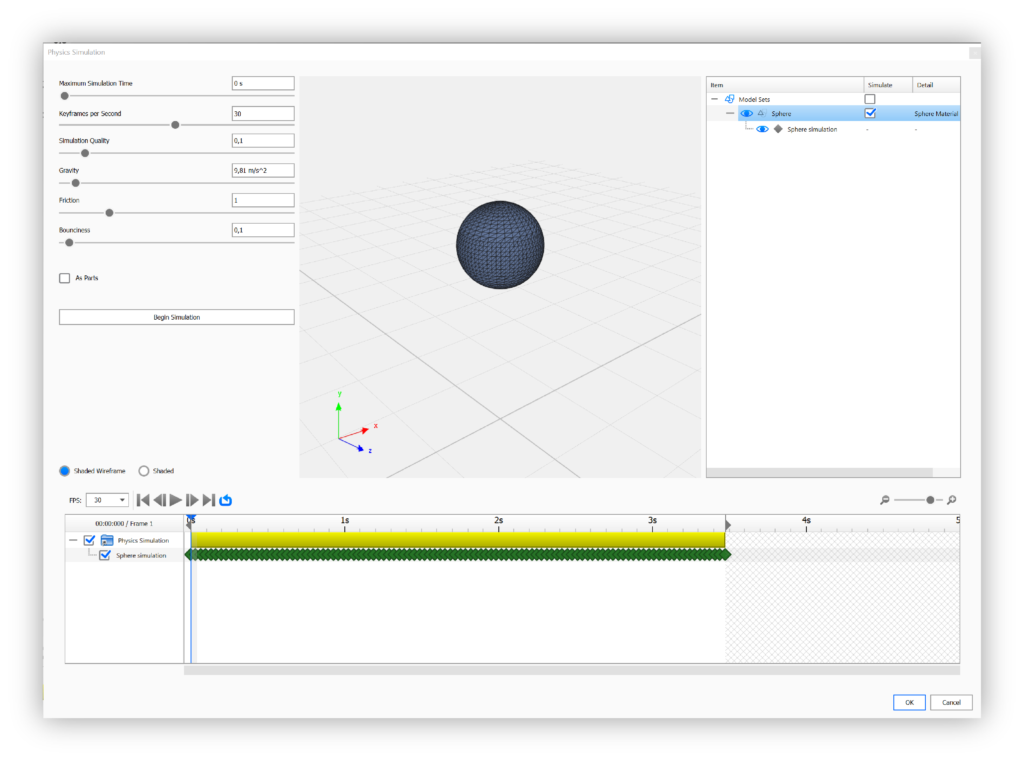
How to use Physics Simulation
- Launch the Physics Simulation tool
Open Physics Simulation from the Tools section of the Ribbon, or right-click a model or part in the scene tree or Real-time view. - Select a part or model
In the scene tree list on the right, select the parts or models to include in the simulation. - Simulation Time
Set how long the simulation runs. If you set the time to 0, the animation runs until everything settles. - Keyframes per Second
Set how many Keyframes per second your Keyframe animation contains. - Simulation Quality
Set how many steps per second the simulation calculates. A higher setting improves accuracy but takes longer to calculate. - Adjust the Gravity
Set gravity to a value between 0 and 100. - Friction
Set the static and dynamic friction for all objects. - Bounciness
Set how much all objects bounce when they collide with other objects or the ground. - As Parts
Use As Parts to let each part of your model settle individually. - Begin Simulation/Stop Simulation
Once you have adjusted the settings above, click Begin Simulation. Click the same button to stop the simulation. - Animation Timeline
View and replay the Keyframe animations you created in the simplified animation timeline. - OK or Cancel
Click OK to apply the scene changes and close the dialogue. Cancel reverts all changes and closes the dialogue.