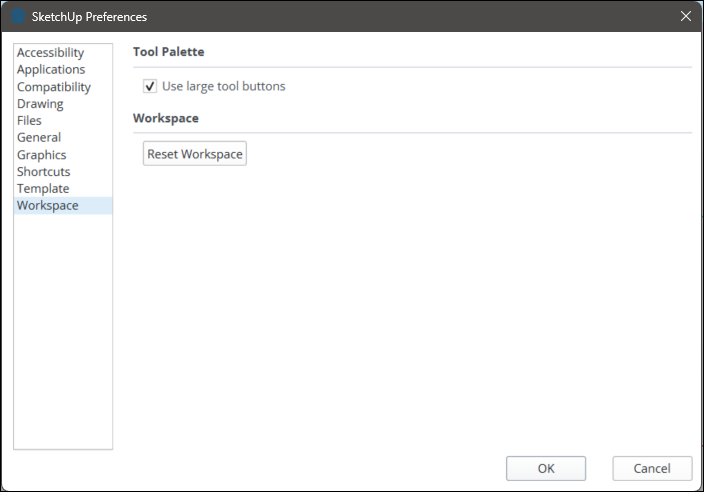
Customise SketchUp in the Preferences window. On Windows, select Preferences from the Window menu. On MacOS, select Settings from the SketchUp menu.
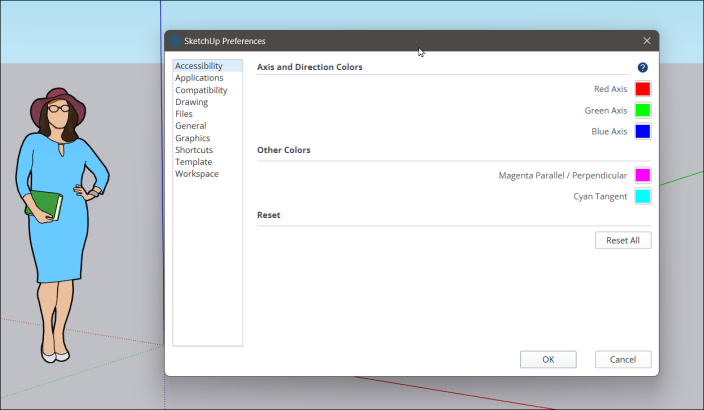
Preferences groups settings into the following sections:
- Accessibility lets you customise the colours of drawing axes and inferences. See Accessibility for details.
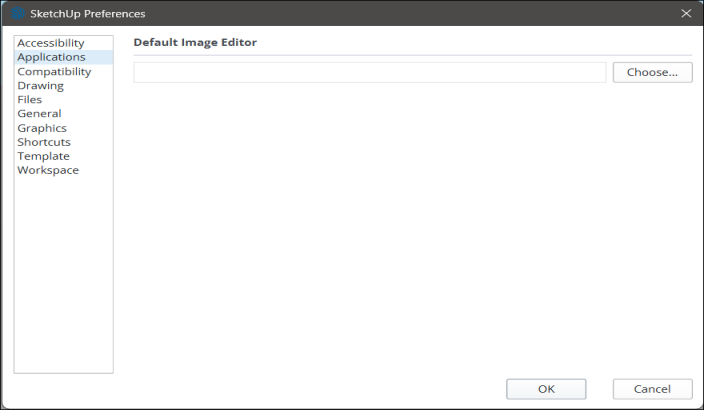
- Applications lets you choose an external image editor for editing a texture. Click Choose and select an application installed on your device.
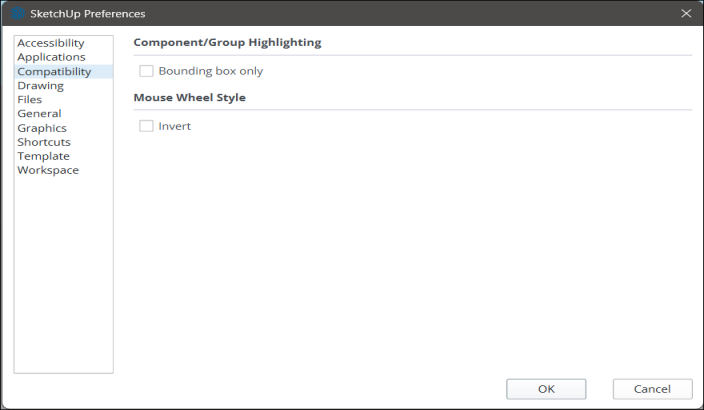
- Compatibility contains features that are disabled by default. Under Component/Group Highlighting, enable Bounding Box Only to show a component's edges in a different colour from the rest of the component. Under Mouse Wheel Style, you can invert the default mouse wheel behaviour.
- Drawing lets you adjust how you draw in SketchUp. See Drawing for details.
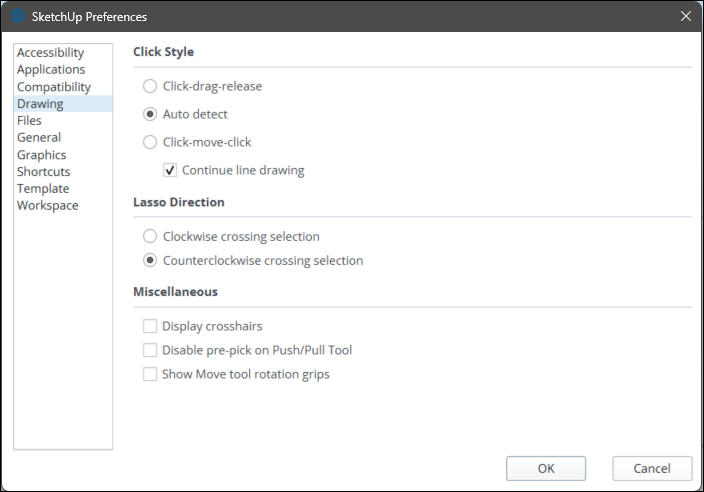
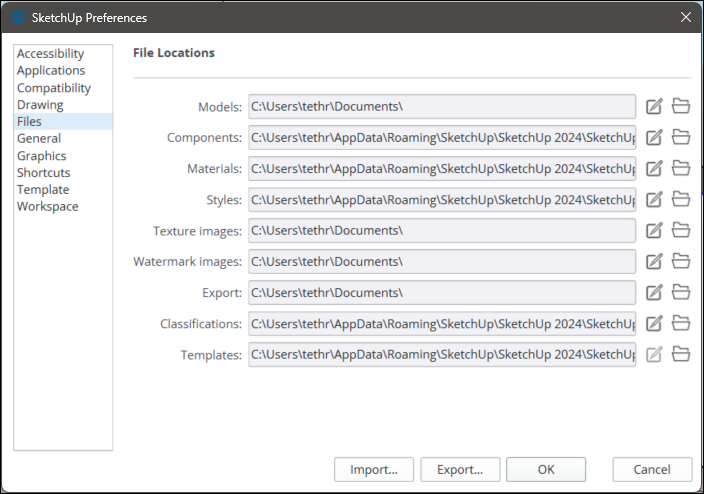
- Files lets you set the default locations for saving your SketchUp files. See Files and General for details.
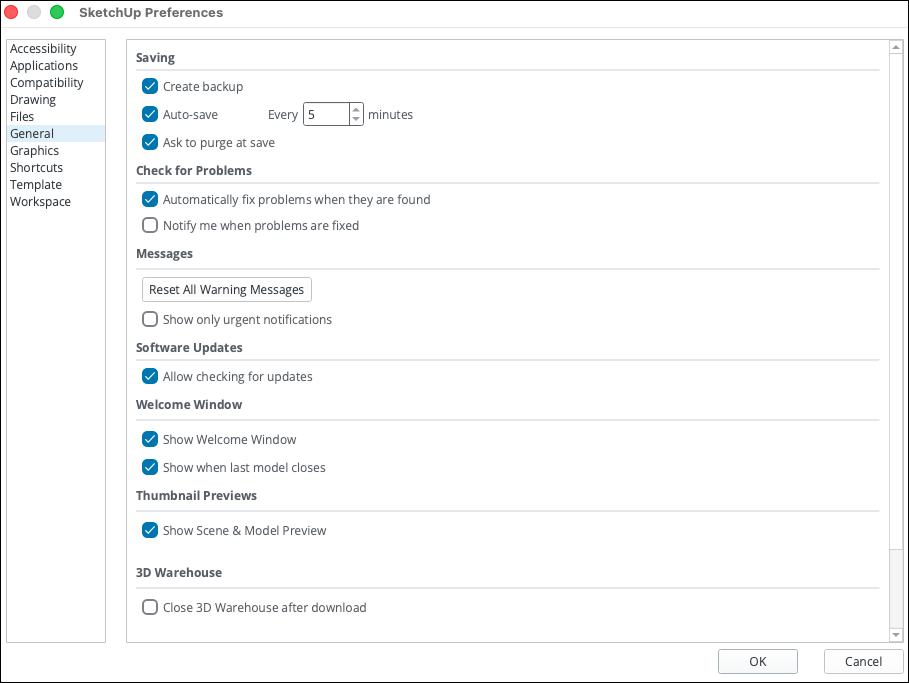
- General lets you customise auto-save, pop-up warnings and other general preferences. See Files and General for details.
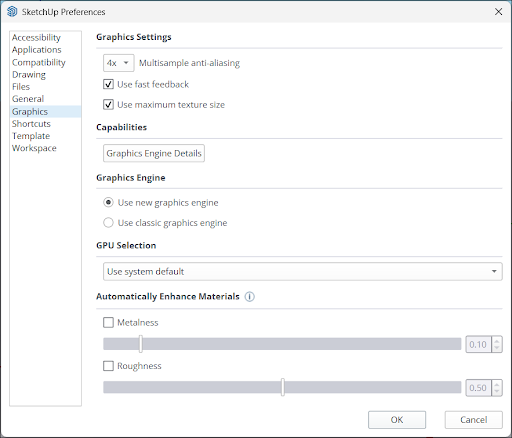
- Graphics contains all graphics settings. See Graphics for details.
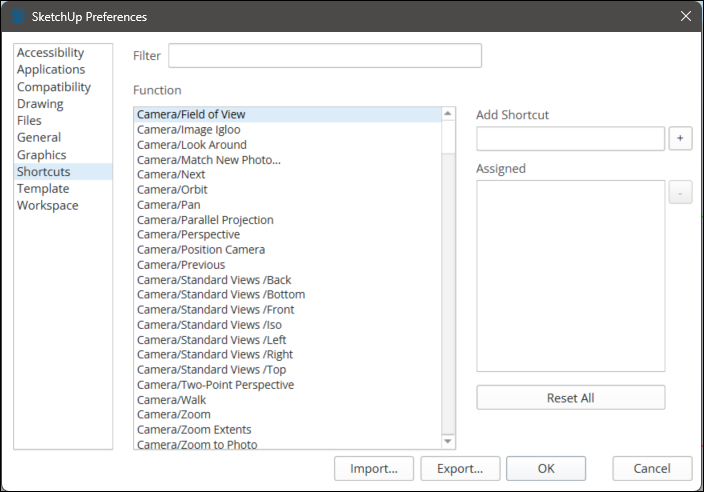
- Shortcuts shows which tools have a shortcut assigned and lets you set up your own. See Shortcuts for details.
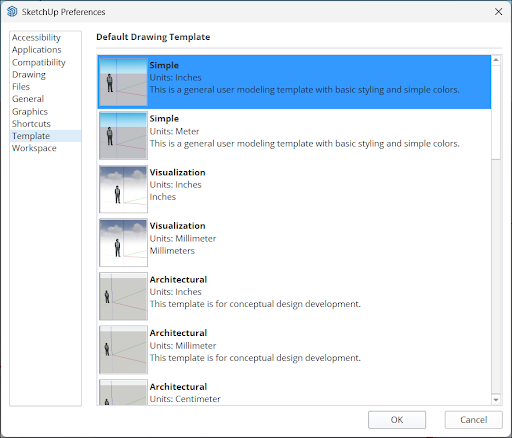
- Template lists all available Templates so you can choose your default template.
- Workspace lets you turn off large tool icons. Click Reset Workspace to return all toolbars and panels to their most recently docked position. On MacOS, you can also use Cascade Main Windows and Save Current Window Size to control how your dialog windows appear.