Choose a template to set up a new SketchUp model. The template determines many of your model's settings. SketchUp includes default templates for architecture, construction, urban planning and landscaping, among other uses. Select a template from the Home section of the Welcome Window.
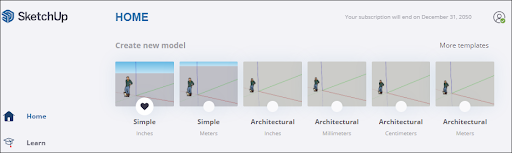
If you cannot find the template you want, click More templates to see the full list of default templates. You can also find all available templates in the Templates section of Preferences.
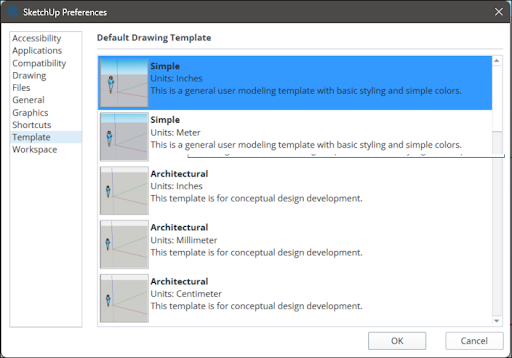
To change the default template your model uses, select an option in the Template section of Preferences and click OK. You can do this at any time.
Model Info
The Model Info window contains settings for your entire model, including those set by your template. Open it from the Window menu or click the Model Info icon in the lower left corner of the SketchUp interface.
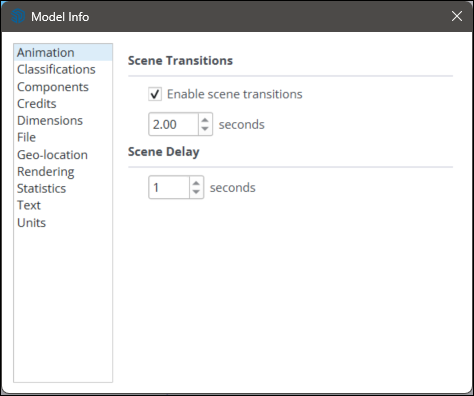
The Model Info window has the following options:
- Animation controls transition timing and the delay between scenes when you animate them. See Communicating Your Designs for help with animating scenes.
- Classifications lets you import classification systems if you use BIM (building information modelling) and classification data. See Classifying Objects for details.
- Components sets how components and groups appear while you edit inside a component or group. You can also show or hide component axes. See Grouping Geometry and Components for details.
- Credits shows who created a model. Click Claim Credit to add the SketchUp licence owner's name to the model. See Using the Credits Feature for details.
- Dimensions sets the defaults for dimension text. See Adding Text to a Model for details.
- File shows basic information about the model file.
- Geo-location shows whether your model is geolocated. See Add Location for details.
- Rendering includes anti-aliased textures, which can improve performance.
- Statistics tracks all entities in your model. It also has tools to purge unused entities and fix some common problems.
- Text sets the defaults for screen text and leader text. See Adding Text to a Model for details.
- Units sets your model's default unit of measurement. See Managing Units of Measurement for details.
Create a custom template
If the default templates do not suit your work, customise one and save it as a custom template file. This saves you repeating the same changes each time you create a model.
To create a custom template:
- Create a new SketchUp file using your current default template.
- Make only the changes you want to save in the template. Templates include all settings in the Model Info dialog box, Style settings and Shadow settings. You can also create base geometry.
- Select File > Save As Template.
- Choose where to save your template.
- Enter a name for the template.
- Click Save.