Use 3D Warehouse to find content from other SketchUp users, or upload and manage your own content in 3D Warehouse.
3D Warehouse home page
When you open 3D Warehouse, you see the 3D Warehouse home page. Featured content and highlighted brands on the 3D Warehouse home page change often. Most basic functions stay the same.
Sign in to access all 3D Warehouse functions. Anyone can search for and open models in 3D Warehouse. You need to sign in to upload and like models, create collections, and access and manage a content library of your models, collections and materials.
You can use these basic 3D Warehouse functions:
- Click Upload (
 ) to add your models and materials to 3D Warehouse. You can make your content visible to other 3D Warehouse users or keep it private so only you can see it. See Uploading Models for help uploading content to 3D Warehouse.
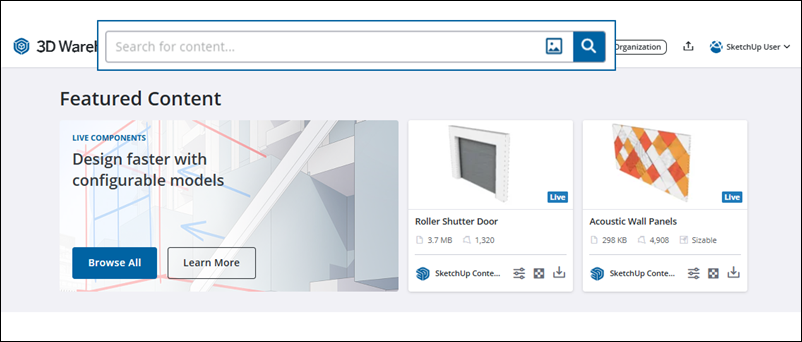
- Search lets you find models and materials uploaded to 3D Warehouse using keywords, phrases or images. See Searching for Models and Materials for instructions.
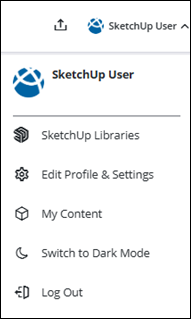
- To access Account Information, click your name in the upper right. You can access the SketchUp Content Library, your profile, 3D Warehouse settings and your content library. See Accessing the SketchUp Content Library, Managing Your 3D Warehouse Profile and Accessing Your Content Library.
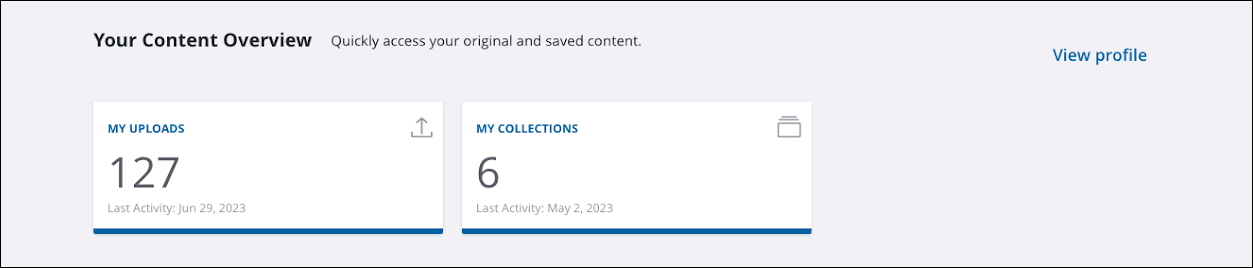
- Your Content Overview lets you view and access all your uploads and collections if you have already uploaded or saved models in 3D Warehouse.
Model details
Open a model's details page to check whether it suits your project. The page includes tools, a detailed description and information about the model.
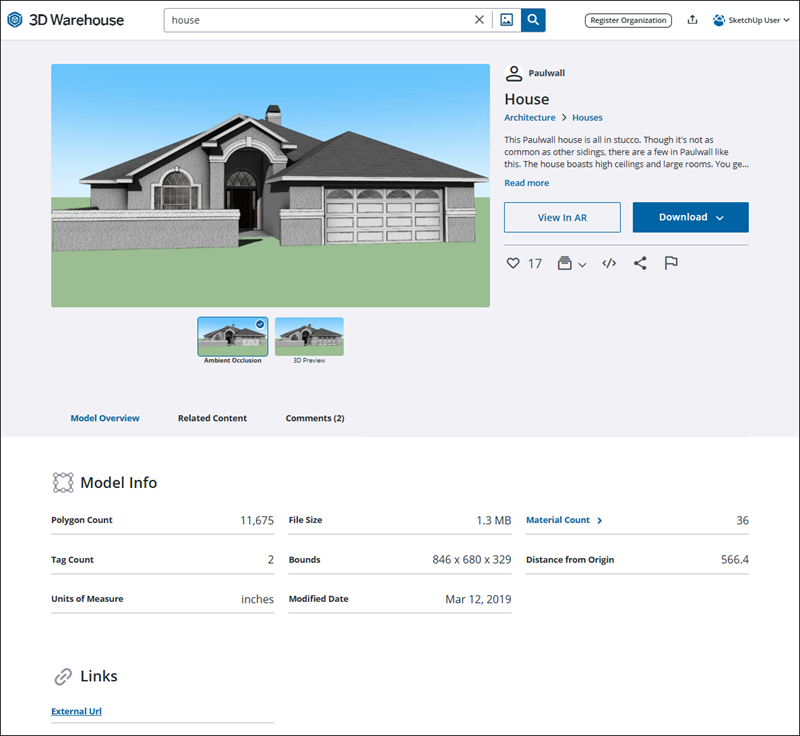
Each model's details page has these sections:
- Name and Description shows the model's creator, name, category and description, if available. You can also choose View in AR or Download.
- Quick Links contains icons to like the model, add it to a collection, embed a link to it, share it or report it.
- Model Info lists basic specifications, such as the polygon count, unit of measurement and number of materials used.
- Related Content shows similar models and may also show similar collections.
- Comments shows comments on the model from other 3D Warehouse users.
- Links shows links to other websites if the model's creator has added them.
Collection and material details
Collections and materials in 3D Warehouse also have details pages. See Collection Details for information about collections, or Uploading Materials for information about material details.