Use the Material tab to adjust material properties in KeyShot.
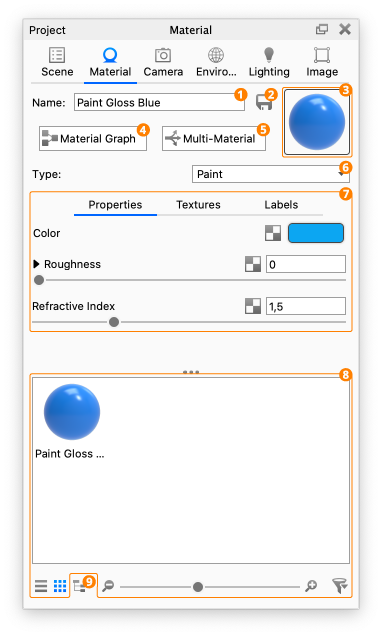
1. Material Name Shows the material's name in the In-Project library. If the project has multiple unlinked instances of the same material, a number is added to their names. 2. Save Saves a copy of the material in the Material Library. 3. Preview Shows the current material. To replace it, drag another material from the Material Library onto the preview. You can also drag the preview elsewhere in the scene to apply the material. |
4. Material Graph (Pro only)
The Material Graph opens in a separate window. It shows materials, textures, labels and other elements as nodes so you can see how they connect within complex materials. See Material Graph for details.
5. Multi-Material (Pro only)
Click the Multi-Material button to turn the current material into a multi-material. Multi-Materials let you switch between different appearances, including materials and colours. See Multi-Materials for details.
6. Type
Change the material type on the selected part. KeyShot Studio transfers any properties that can be translated between the types. See Material Types for descriptions of the available types.
7. Properties/Textures/Labels
Each material type has properties you can adjust. You can also add labels and textures. The texture icon  marks settings where you can apply textures.
8. In-Project Library
Lists all materials in the current scene. See In-Project Library for details.
9. Material View
Shows all Labels, textures, nodes and other elements of the current material in a tree view.