Use labels in KeyShot to place logos, stickers or video on a 3D model. You can also layer another material over the base material.
Labels are layers of materials or textures on top of your base material.
Add labels through the labels tab in a material's properties. You can also drag them from the Library onto a part in the Real-Time View or into the Layer list.
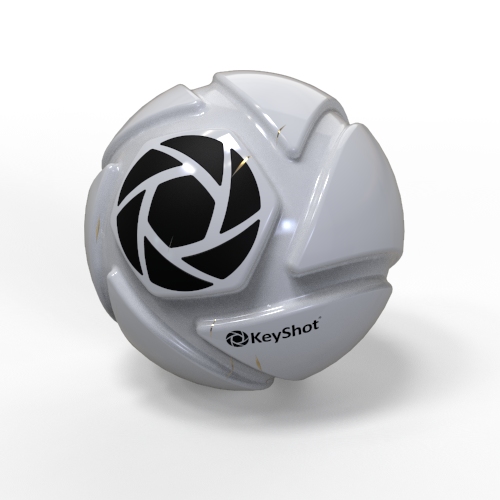
In this example, the material ball has 3 labels: 2 individually positioned stickers and a coat of paint. Subtle scratches reveal the golden base material. Both the stickers and the paint use the same opacity map so the scratches cut through both.
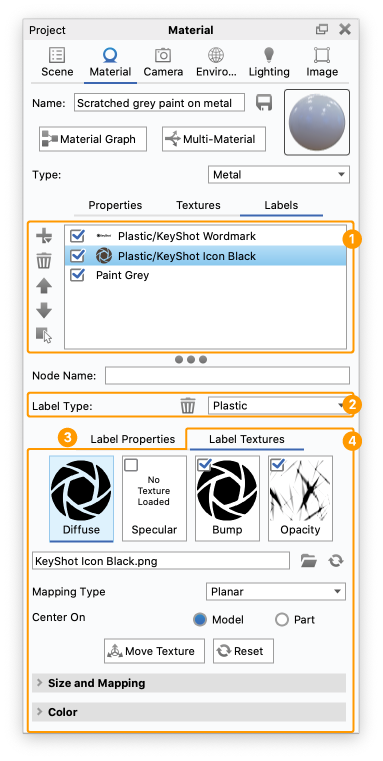
1. Layer list
You can add an unlimited number of labels to a material. Each label can use its own mapping type. If an image has an embedded alpha channel, KeyShot retains it and leaves transparent areas invisible.
Add label
To add a label, click the "+" icon and select Add Label (Texture), Add Label (Video) or Add Material. The label name then appears in the list. Choose "Duplicate" to copy an existing label.
Add Material adds a layer of the material selected in Label type (2) over your base material. Add Label (Texture) and Add Label (Video) also add a texture to the Diffuse map (4).
Delete label
To delete a label, select it in the list and click the Trash Icon.
Layer order
Labels form layers as you add them. Where labels overlap on the model, they stack in the order shown in the Labels list. Use the up and down arrow buttons to change the order.
Pick label
Use Pick Label to select a label in the Real-Time View for editing.
2. Label type
Each label has a material type. The default is plastic. You can change it to Diffuse, Flat, Metal, Paint, Translucent, Advanced, Anisotropic, Metallic Paint, Plastic (Transparent), Translucent Medium, Emissive, Toon, Xray, Generic and Plastic.
The axf-SVBRDF and -CPA2 variants of Measured materials are also supported. axf-Volumetric Measured materials work, but their opacity map has no effect.
3. Label properties
The Properties Tab shows settings for the selected label type. See Material Types for details.
4. Label textures
Map types
Texture and video labels are added as Diffuse maps. Use the Label Textures tab to add other maps, as you would in the Textures tab for materials. The available texture map types are similar to those for the corresponding material type.
Use the checkboxes in the list of texture types to enable or disable a texture map.
See Map Types for details about Bump, Diffuse, Opacity and other maps.
Mapping type
Textures use planar mapping by default. See Mapping Types for details about the mapping methods.
Move texture
See Move Texture for details about Move Texture and Size and Mapping.
Warning
Dragging a label onto the model adds and aligns it to the point where you drop it. This may set an unexpected angle in the Label properties.
If you drop a label into the Labels list, it is inserted at 0 degrees (or 90 degrees, depending on how the model was imported).
Texture properties
See Texture Types for details about the properties of each texture type.