Use LayOut panels to create and adjust your documents. These panels are available:
- Use the Colors panel to choose and organise colours for your document. See Choosing Colors.
- Use the Pattern Fill panel to view and manage patterns you can apply to shapes. See Filling Shapes with Colors and Patterns.
- Use the Shape Style panel to choose colours, patterns and line widths for shapes. See Filling Shapes with Colors and Patterns and Customizing Line Widths and Styles.
- Use the SketchUp Model panel to manage SketchUp models in your document. See SketchUp Models in LayOut.
- Use the Scaled Drawing panel to apply a scale to all geometry in your document. See Creating a Scaled Drawing.
- Use the Dimension Style panel to format dimensions in your document. See Marking Dimensions.
- Use the Text Style panel to format text in your document. See Formatting Text.
- Use the Pages panel to create and manage pages in your document. See Managing and Navigating Pages.
- Use the Layers panel to create, navigate and manage layers in your document. See Using Layers.
- Use the Scrapbook panel to find scrapbooks of visual elements you can reuse in your documents. See Working with Scrapbooks of Reusable Entities.
Each panel can have its own window, or you can group panels into trays. You can choose which trays appear and how they appear in your workspace. All panel and tray options are in the Window menu.
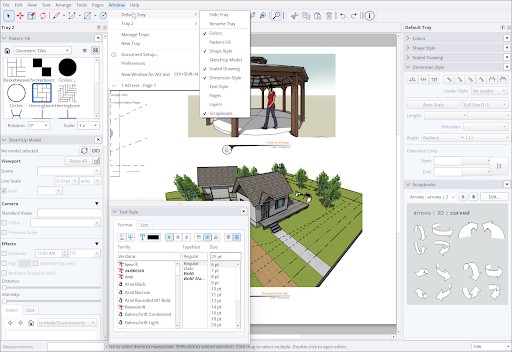
Follow the instructions for your operating system to customise panels and trays.
Windows
To create a custom panel tray:
- Select Window > New Tray. A dialogue box with tray options appears.
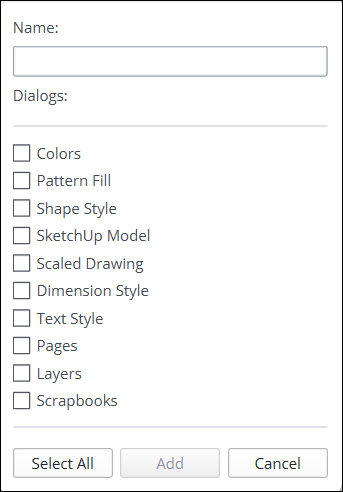
- Type a name for the tray.
- Select each panel you want in the tray. Clicking Select All selects all trays.
- Once you have selected the panels, click Add. Your new tray appears in the Window menu.
Each new tray appears as a tab at the bottom of the existing tray window. Click a tab to switch trays. To create a separate tray, drag its tab out of the window.
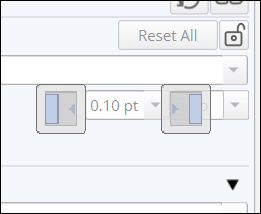
You can drag trays anywhere, including outside the LayOut window. Positioning icons appear in the workspace as you drag. Use an icon to snap the tray to the position it shows.
macOS
In LayOut on macOS, each panel has its own window. To create a tray, join open panels into a stack:
- Click Window and select the panel you want to open. A check mark means the panel is open. A dash means it is hidden. No mark means it is closed.
- With at least two panels open, drag one panel's title bar to the bottom of another panel. The bottom panel joins the top panel.
- Repeat until the stack contains the panels you want.
- To stack all available panels, click Window > Arrange Panels.
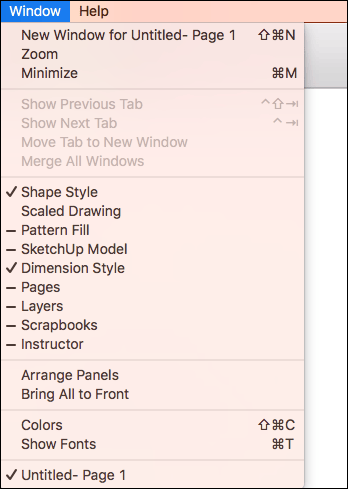
Once you have created a stack, you can:
- Click a panel's title bar to open or hide it.
- Click Close at the top left of a panel to remove it from the stack and screen.
- Drag a panel's title bar to separate it from the stack.