Use LayOut to create 2D documents and presentations from your 3D models. LayOut works with SketchUp, and many of its tools work in similar ways.
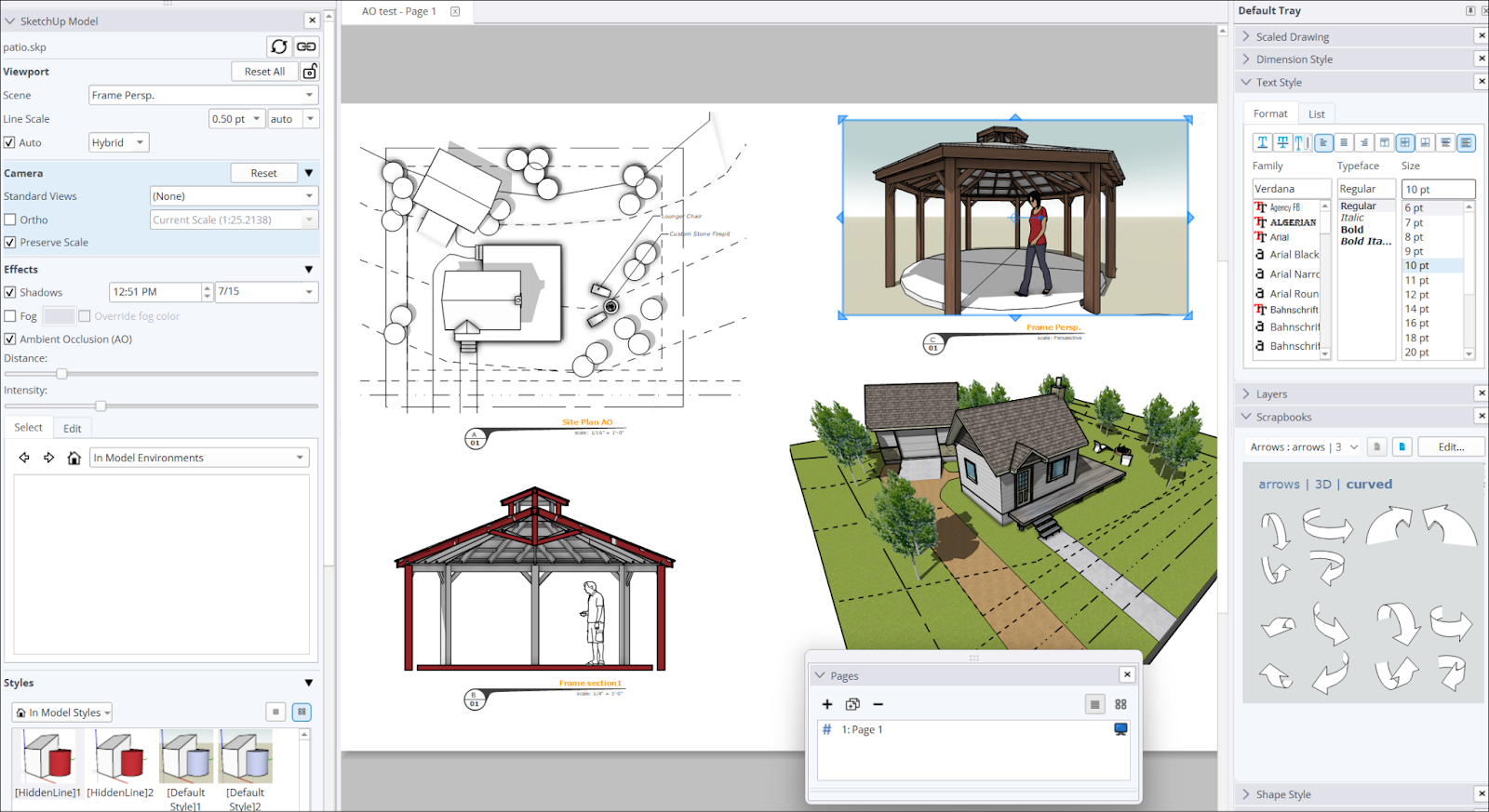
Each part of the LayOut interface gives you different options for working with your documents.
The menu and toolbar

The Menu bar is at the top of the window and has the following options:
- Use File to open and save your documents, adjust your document setup, or export or print your documents. You can also import SketchUp models or CAD data into your document.
- Use Edit for Undo, Redo, Copy, Paste and related editing options. You can also create a clipping mask, group or ungroup entities, or adjust your preferences.
- Use View to adjust toolbar visibility and settings, render models in your document, adjust the zoom settings, or enter presentation mode.
- Use Text to insert text in your document. See Adding Text, Labels, and Dimensions for details.
- Use Arrange to control how entities appear in your document. See Arranging, Moving, Rotating, and Scaling Entities for details.
- You can also access LayOut's toolset through Tools.
- Use Pages to manage the pages in your document. See Managing and Navigating Pages for details.
- Use Window to manage the trays or modals that appear in LayOut. See LayOut Panels and Trays for details.
- Use Help to open the Help Center, return to the Welcome page, check for updates, or sign out.
The default toolbar contains the most-used LayOut tools and other options. See LayOut Tools for the available tools. To customise your toolbar, see Customizing Toolbars and Menus.
The document window and panels
Use the document window to add SketchUp models, images, text and other content to your document. You can also set up LayOut's panels here to fine-tune your models. Choose which panels appear and where they sit in the interface. See LayOut Panels for details about the panels and how to customise them.
Status and measurements

The Status bar at the bottom of the window shows the active tool and tips for using it, including optional tool modes. The measurements box on the left lets you enter values when drawing or modifying your document. The zoom dropdown on the right has options for adjusting your document's view.
Navigating the LayOut interface
You can navigate LayOut with a three-button mouse, a one-button mouse, an Apple Magic Mouse or a trackpad.
Action | Three-button mouse | One-button mouse/trackpad | Magic Mouse |
|---|---|---|---|
Click or select | Press and release the left mouse button. | Press and release the mouse. | Press and release the mouse. |
Click and drag | Hold the left mouse button while moving the mouse. | Hold the mouse button while dragging. | Press and hold the mouse while dragging. |
Scroll | Roll the scroll wheel in the direction you want to scroll. | Not available | Move your finger along the mouse in the direction you want to scroll. |
Context-click | Click the right mouse button. | Hold the Alt or Option key while clicking. | Use the context-click gesture on the mouse surface. |
For more ways to move around your LayOut documents, see Use the Zoom and Pan Tool to View Your Model.